
Consultation Returns
After sending consultations to your suppliers, integrate their offers into the system to compare them and validate one per item.
Prerequisites
- Have created consultations for at least one purchasing category
Enter supplier offers
Click the action icon on the right of a consultation row to open the Supplier Offer Management modal. The modal header displays the part number, designation and purchase type (Raw material, Subcontracting or Component).
Three tabs are available:
Add an offer
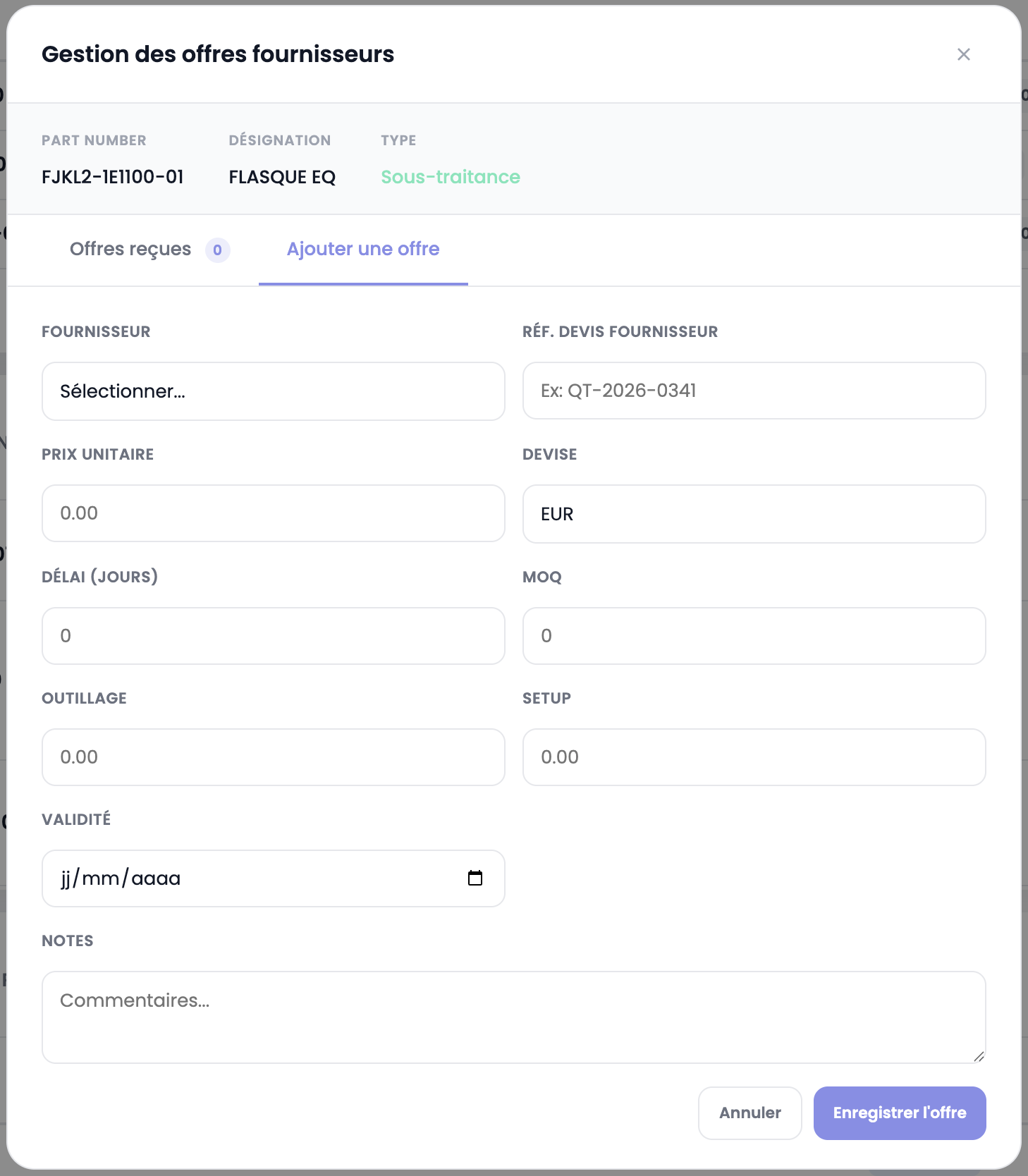
Enter the received offer details:
| Field | Description |
|---|---|
| Supplier | Select the supplier from the list |
| Supplier quote ref. | Quote reference (e.g. QT-2026-0341) |
| Unit price | Price per part |
| Currency | Offer currency (EUR, USD, CAD) |
| Lead time (days) | Delivery lead time in days |
| MOQ | Minimum order quantity |
| Tooling | Tooling cost if applicable |
| Setup | Setup cost |
| Validity | Offer validity date |
| Notes | Free text comments |
Click Save offer to save. You can enter as many offers as needed for the same item.
Received offers
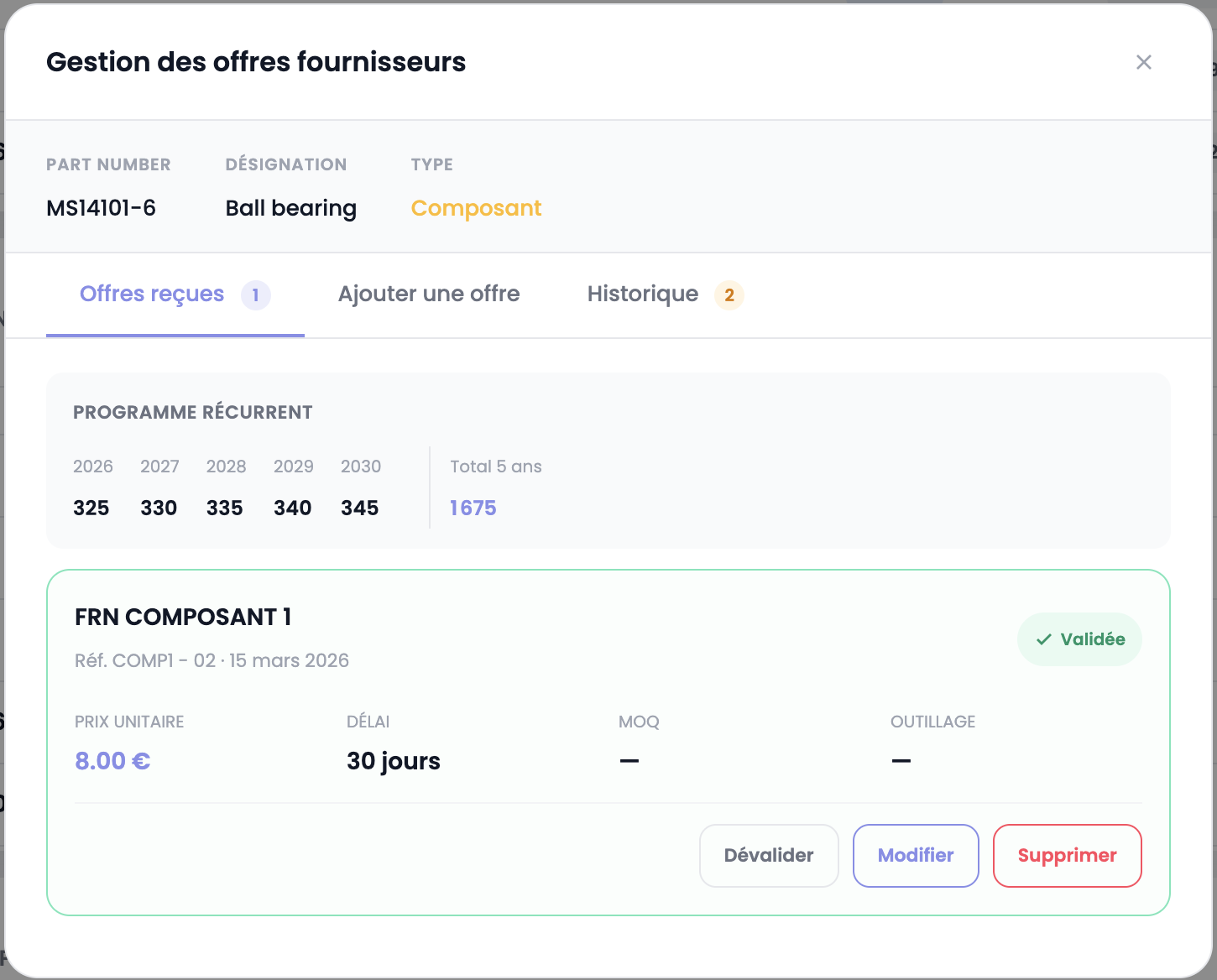
The Received offers tab displays the recurring program (quantities per year and total over the contract duration) as well as all offers entered for this item.
Three actions are available for each offer:
| Action | Description |
|---|---|
| Validate | Selects this offer as the retained one. The validated offer is outlined in green with the Validated badge |
| Edit | Edits the offer details |
| Delete | Deletes the offer |
To change the retained offer, click Unvalidate on the current one, then Validate on another.
History
If history is available for this item (offers from previous consultations), the History tab displays past offers with a counter. You can select a return from a previous consultation to reuse it without re-entering the data.
Excel import of supplier offers
As an alternative to manual entry, you can integrate supplier offers by importing the previously completed Excel consultation file.
How to
- Export the consultation as an Excel file
- Fill in the supplier offer columns directly in the file
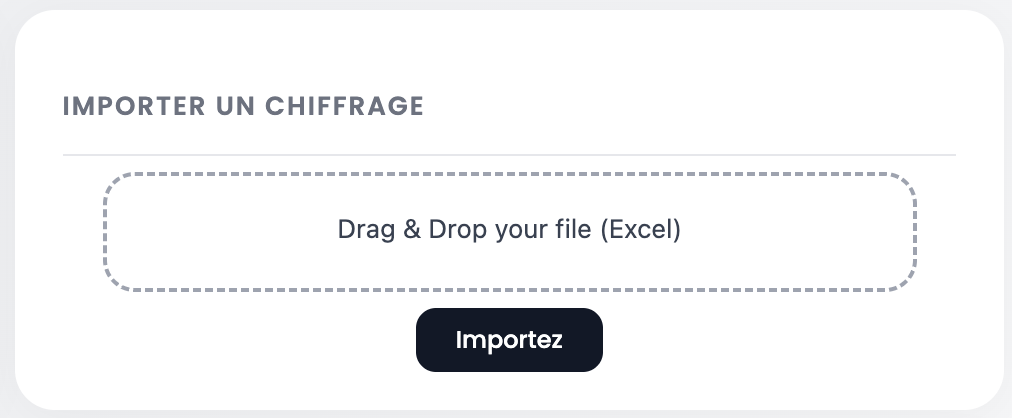
- Drag and drop the completed file into the consultation import area
File format
The Excel file allows up to 5 offers per consultation line. For each offer, the following fields are mandatory:
| Field | Description |
|---|---|
| Supplier name | Supplier name |
| Quote number | Supplier quote reference |
| Unit price | Unit price |
| Currency | Currency (EUR, USD, CAD) |
| Leadtime | Delivery lead time in days |
| Validate | yes or no — indicates if this offer is retained |
Warning
Never modify the Excel file structure: do not delete columns, rename headers, move cells or add rows. Only the cells intended for offer entry should be filled in. Any structural modification will make the import fail.
WARNING
Only one offer can be marked validate=yes per consultation line. If multiple offers are marked as validated for the same item, the import will be rejected.
Purchasing Validation
Once every consultation item has a validated offer, you can validate the Purchasing step of the overall RFQ workflow via the Workflow Validation selector at the top right of the page.
Next step
Move on to the Pricing & Offer section to calculate costs and build your sales offer.