
Offer Submission and Customer Feedback
Once the commercial offer is generated, you can export it, view the detailed report, submit the offer to the customer and record their feedback.
Prerequisites
Export the offer
Click the Export your offer button to open a template selection modal. Choose the template suited to your customer, then export the offer in the desired format.
Detailed report
Click the Report button to display a comprehensive RFQ report.
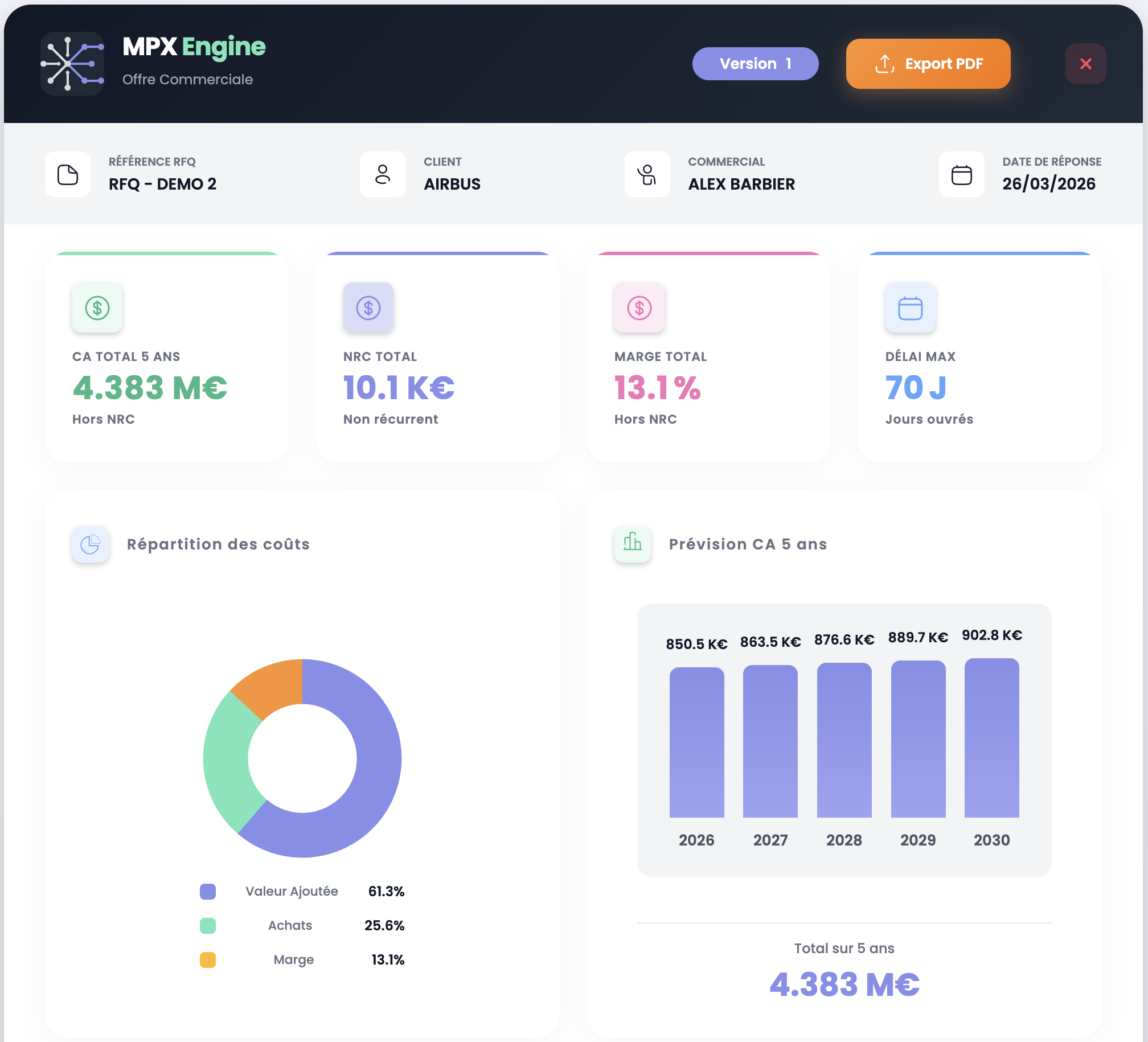
The report contains:
- Header: RFQ reference, customer, sales representative, response date, offer version
- Global KPIs: total revenue over the contract duration, total NRC, total margin (%), max lead time (working days)
- Cost breakdown: pie chart showing the split between value added, purchasing and margin
- Revenue forecast: bar chart of annual revenue over the contract duration
- Per-part detail: costs and lead times for each line, including a Gantt chart for production cycle management
TIP
Use the Export PDF button at the top of the report to generate a printable version to share internally.
Submit the offer
Once the offer has been sent to the customer, record the submission in the system:
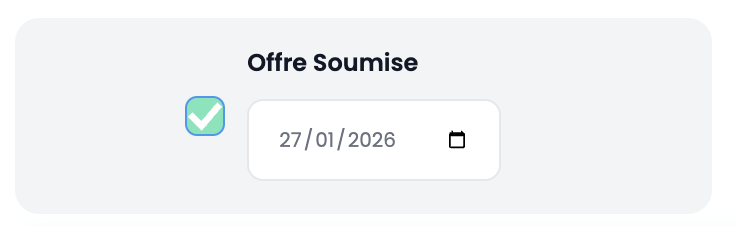
- Check the Offer Submitted box
- Enter the submission date
- Validate the Sales step in the Workflow Validation selector at the top right of the page
Customer feedback
When the customer has given their response, record the result:
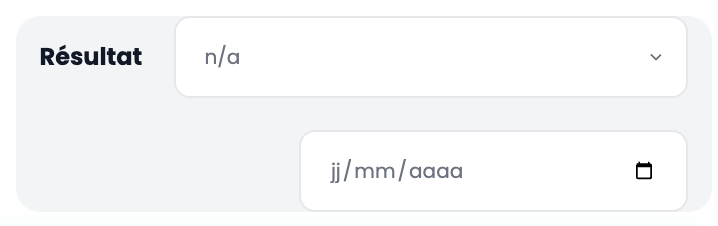
- Select the Result from the dropdown (Won, Lost, etc.)
- Enter the date of the customer's response
- Validate the RFQ to close the file
INFO
The result is visible on the Result badge of the workflow timeline and in the KPIs of the dashboard.