
User Management
This page allows administrators to manage team members: invite new users, assign privileges and manage accounts.
WARNING
This page is restricted to administrators.
Invite a new member
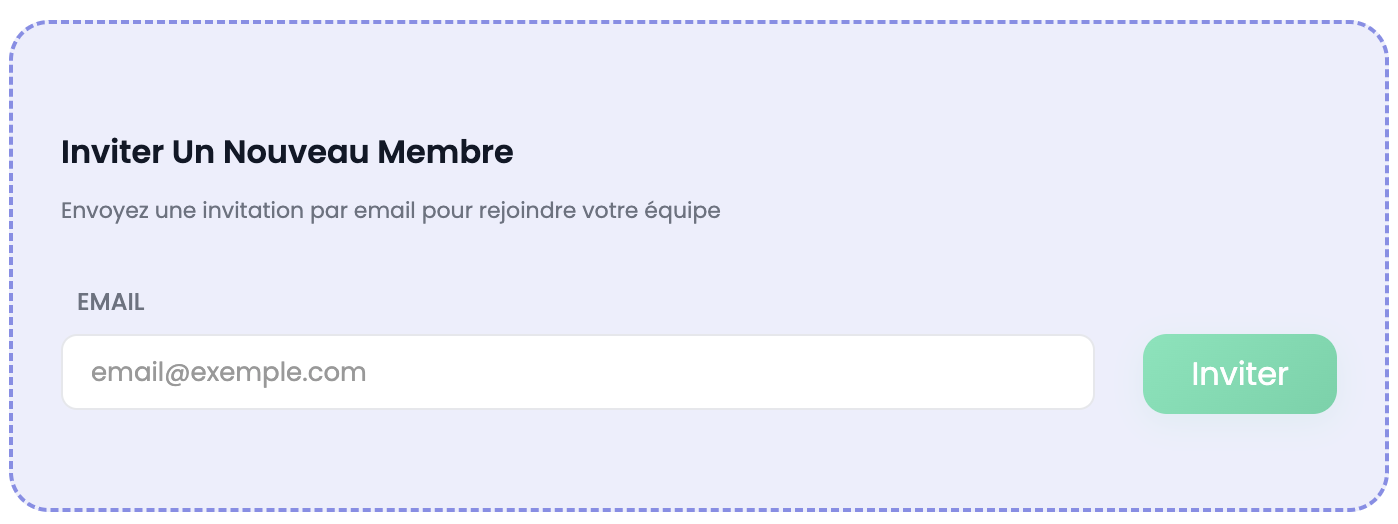
Enter the email address of the colleague to invite, then click Invite. An invitation email is automatically sent with a link to join your team and create their account.
Team members
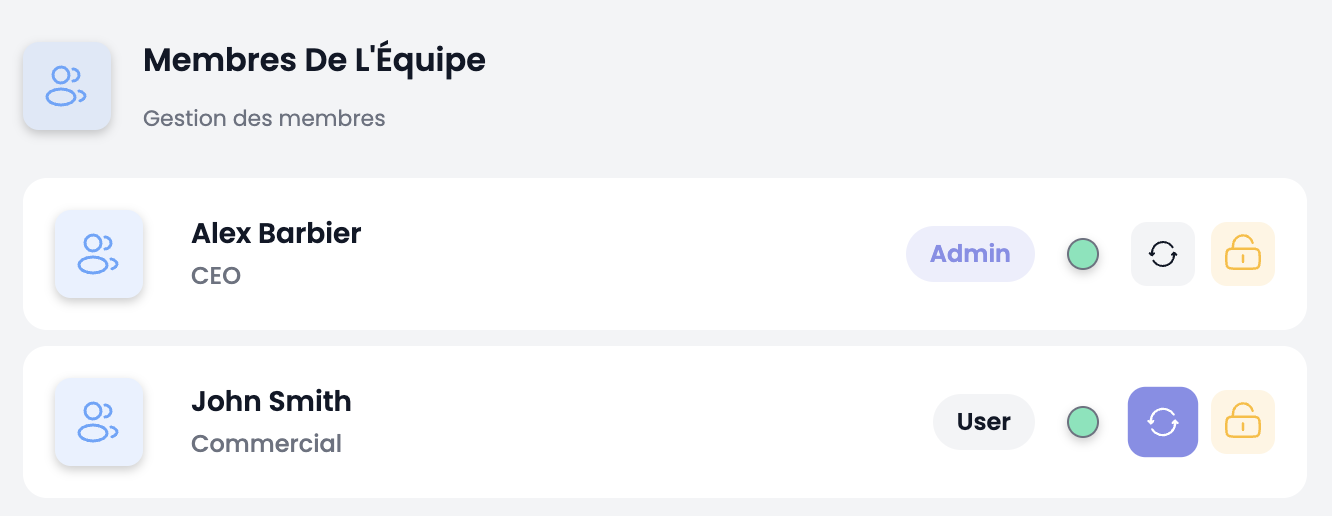
The list displays all members of your company with their name, position and current role (Admin or User).
For each member, the following actions are available:
| Button | Description |
|---|---|
| Green/red dot | Indicates whether the account is active or disabled |
| Update (↻) | Click to apply role or status changes |
| Lock (🔒) | Disable or re-enable the user's account |
Grant administrator privilege
Change a user's role from User to Admin to give them access to administration pages (company settings, user management, activities & machines, billing). Then click the update button to save the change.
Disable / re-enable an account
Click the lock button to disable a user account. The user will no longer be able to log in. Click again to re-enable the account. Confirm by clicking the update button.