Consultations
The Purchasing section manages supplier consultations for each RFQ. The displayed data comes automatically from previous steps: BOM extraction (material, treatments, processes) and Engineering (stock dimensions, blank type).
Prerequisites
- Have validated the Engineering phase for your parts
The 3 purchasing categories
The Purchasing section is organized into three categories, each corresponding to a type of need:
Raw material
Consultation for purchasing raw stock (bars, plates, etc.). The table displays for each part:
| Column | Description |
|---|---|
| Part | Part number |
| Type | Stock shape: Plate or Bar |
| Dimensions | Raw material dimensions (from the 3D model) |
| Material | Identified alloy |
| Standard | Material specification |
| Total qty | Total quantity to procure over the contract duration |
| Actions | Available actions on the row |
Subcontracting
Consultation for subcontracted steps (surface treatments, special processes, etc.). The table lists operations identified as subcontracted in the manufacturing routing.
Buy items
Consultation for parts classified as Buy in Engineering — purchased components as-is (fasteners, standards, catalog parts).
Create a consultation
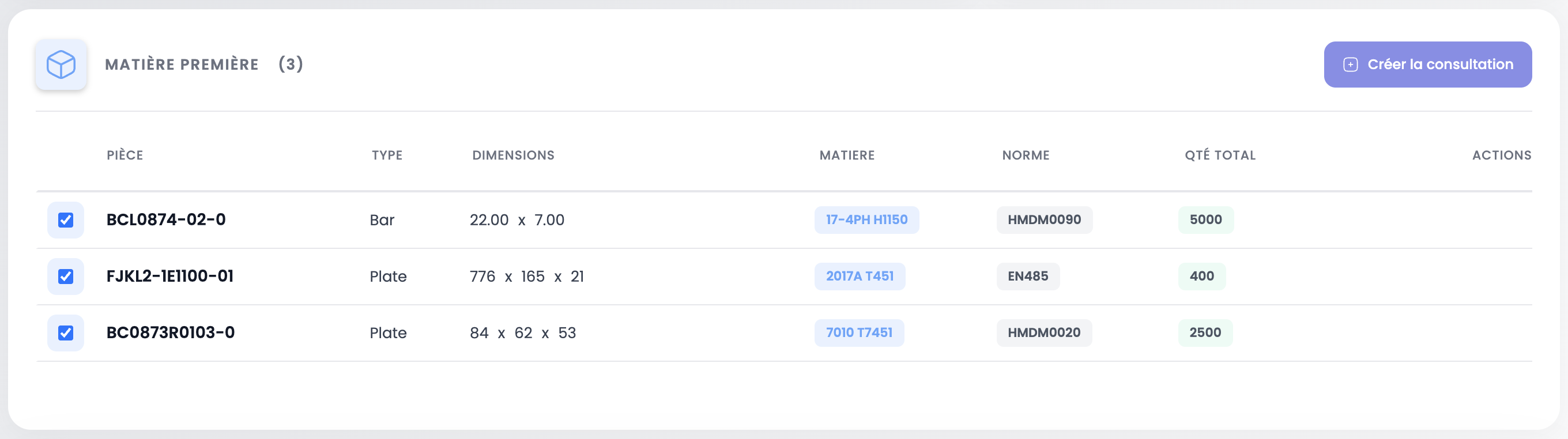
For each category, click the Create consultation button at the top right of the table. This automatically generates the supplier consultation with the corresponding lines.
INFO
You must create the consultation for each category separately. The three consultations are independent.
Manage a consultation
Once the consultation is created, the table displays consultation lines with the detail of needs per part.
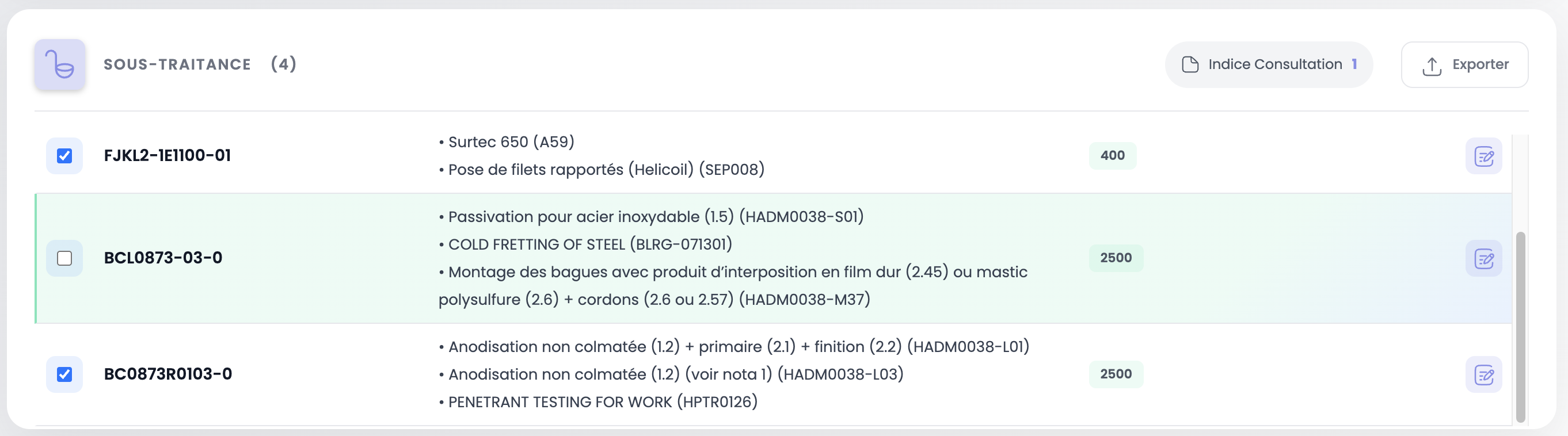
Each row shows the part, the relevant operations or materials and the total quantity.
Exclude items
Uncheck the box on the left of a row to exclude an item from the consultation. The excluded item will not be included in the export or in calculations.
Export to Excel
Click the Export button at the top right of the table to download the consultation as an Excel file. You can then send this file to your suppliers to launch consultations.
TIP
Each category (Raw material, Subcontracting, Buy items) has its own export button. Export them separately as needed.