
Sales Offer
The Sales section allows you to build your commercial offer from Engineering and Purchasing data. You define additional costs, margins per category and NRE for each line, then generate the final offer.
Prerequisites
- Have validated the Engineering phase
- Have validated the Purchasing phase (one validated offer per item)
Step 1 — Generate lines
From the Sales tab at the top of the RFQ page, click the Generate lines button.

This automatically creates a pricing line for each part in the RFQ, pulling calculated costs from Engineering (cycle time, setup) and Purchasing (material, subcontracting, purchased components).
Step 2 — Additional costs
For each line, you can add additional costs:
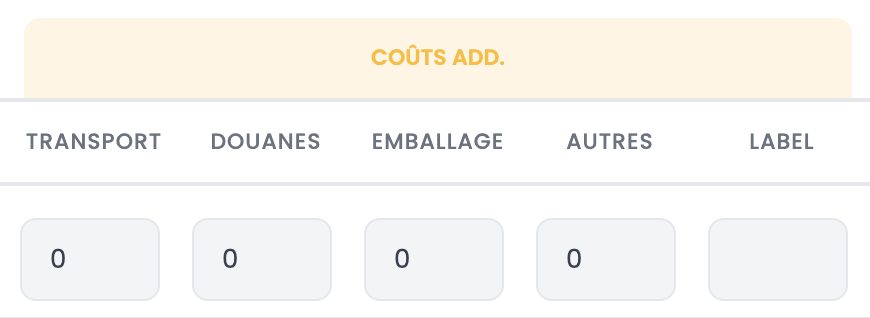
| Field | Description |
|---|---|
| Transport | Transport cost per part |
| Customs | Customs fees per part |
| Packaging | Packaging cost per part |
| Other | Other additional costs per part |
| Label | Free text label to identify the additional cost |
Step 3 — Margins and NRE
Click the margin button on each line to open the Margins & NRE modal.
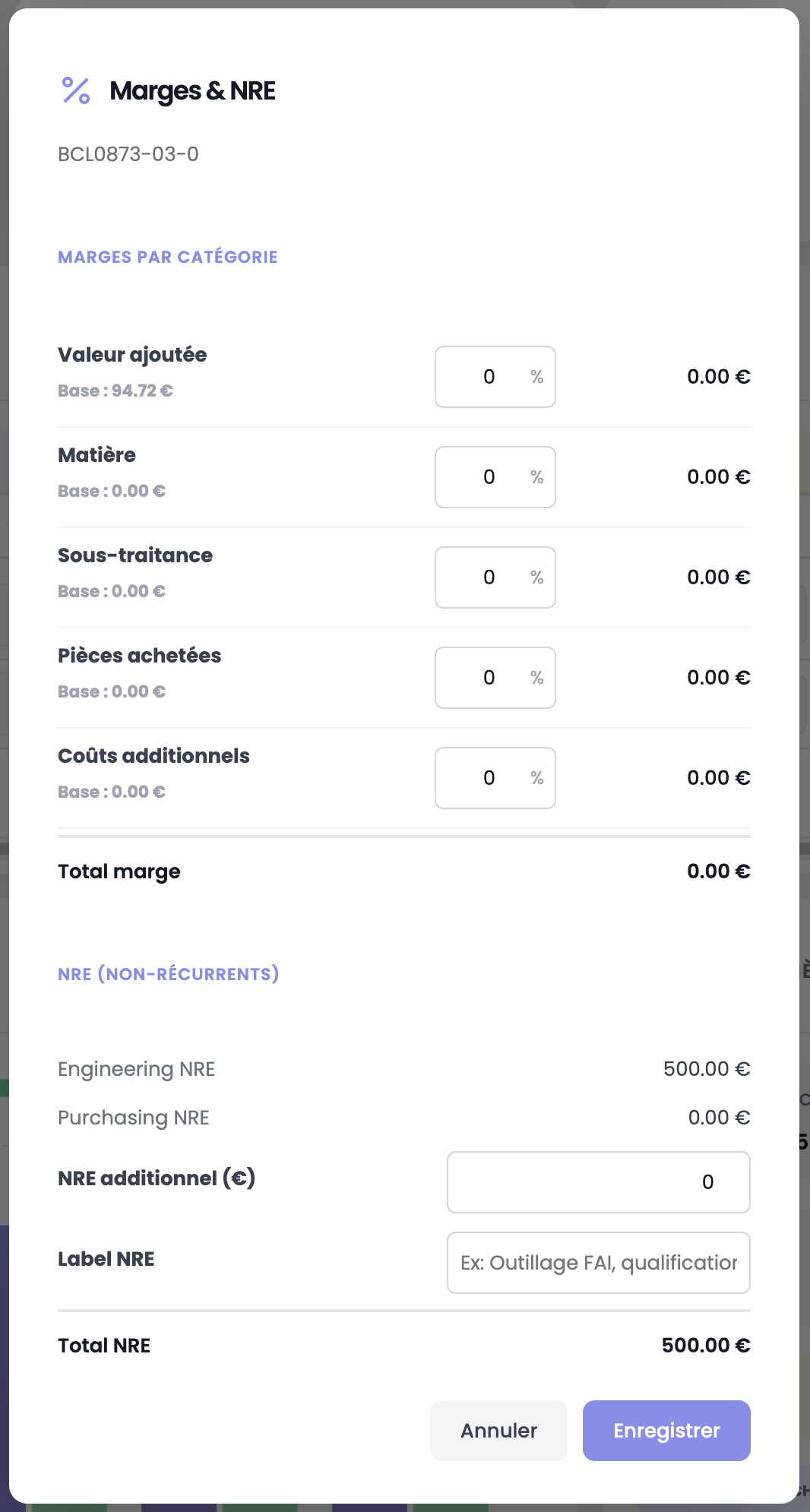
Margins per category
Apply a margin percentage on each cost category. The base amount is displayed for reference:
| Category | Description |
|---|---|
| Value added | Margin on internal manufacturing costs (cycle time + setup) |
| Material | Margin on raw material cost |
| Subcontracting | Margin on subcontracting costs |
| Purchased parts | Margin on Buy components |
| Additional costs | Margin on additional costs (transport, customs, etc.) |
NRE (Non-Recurring)
Non-recurring costs are automatically pulled from Engineering and Purchasing:
| Field | Description |
|---|---|
| Engineering NRE | Total Engineering NRC (programming, tooling, other) |
| Purchasing NRE | Total Purchasing NRC (supplier tooling, setup) |
| Additional NRE | Free amount for extra NRE (e.g. FAI documentation, qualification) |
| NRE Label | Label to identify the additional NRE |
Click Save to confirm.
Step 4 — Economic batch quantity
Each line has an economic batch quantity field (default 10 parts). This value spreads fixed costs (setup) over a production batch to optimize the unit price.
Step 5 — Update calculations
After modifying costs, margins or quantities on a line, click the update button (reload icon) at the end of the line to recalculate the selling price.

WARNING
Changes are not taken into account until you click the update button for the line.
Step 6 — Generate the offer
Once all lines are filled in and updated, click the Generate offer button. This triggers the creation of the commercial offer at index 1.
INFO
Each new generation increments the offer index (index 2, 3, etc.), preserving the version history.